Articles
Keyboard shortcuts
3 min readUpdated October 28, 2026
On Windows and Linux, press Ctrl where a Mac takes ⌘. The keys in parentheses are the Windows and Linux ones.
Anywhere in a product
| Keys |
What it does |
| ⌘K (Ctrl+K) |
Opens or closes the palette: find an article, go to a page, or ask the chat. |
| ⌘J (Ctrl+J) |
Opens or closes the chat. With the pointer over a picture or a row, it adds that thing to the chat. |
⌘J does nothing on a chat opened as its own page.
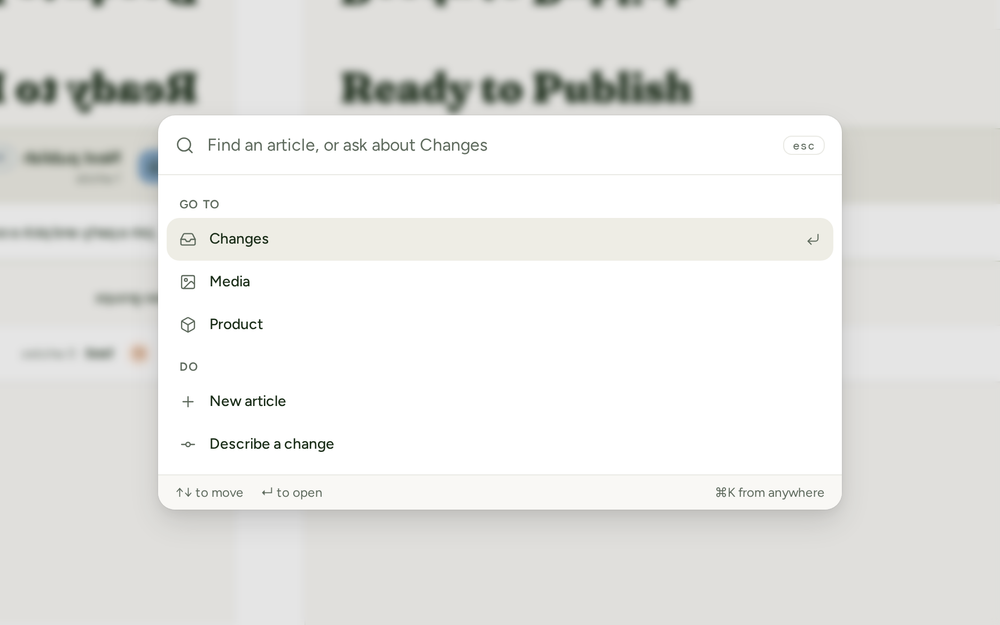
In the palette
| Keys |
What it does |
| ↑ ↓ |
Moves through the results. |
| Enter |
Opens or runs the picked result. On the “Ask the chat” result, it sends your words to the chat. |
| Esc |
Closes the palette. |
In the chat
| Keys |
What it does |
| Enter |
Sends the message. |
| Shift+Enter |
Starts another line in the message. |
| @ |
Names a thing from another page: an article, a screen, a take, or a run. ↑ ↓ moves; Enter or Tab adds it. |
| Shift+click |
With Point on, adds one more thing and keeps pointing. |
| Esc |
Stops Point, or Snip a part of the screen. |
In an article
| Keys |
What it does |
| ⌘. (Ctrl+.) |
Focus or Leave focus: hides the rail and the article's panels, or shows them again. |
| / |
At the start of an empty line, or after a space, opens the block menu. Type to find a block. |
| ↑ ↓, then Enter or Tab |
In the block menu, moves to a block and adds it. Esc closes the menu. |
| ⌘B (Ctrl+B) |
Bold. |
| ⌘I (Ctrl+I) |
Italic. |
| Tab, Shift+Tab |
In an FAQ, Steps, Tabs, Cards, or Fields block, moves from a title to its text and on to the next item. |
| Enter |
In an FAQ question or an item's title, moves to its text. |
| Esc |
Closes Ask AI on picked words. |
| ⌘S (Ctrl+S) |
Does nothing: the article saves as you type. |
In review
These keys work in an article with proposed edits, while the cursor is not in the text or a field.
| Keys |
What it does |
| J |
Goes to the next proposed edit. |
| K |
Goes to the previous proposed edit. |
| A or Y |
Accepts the proposed edit. With none picked, it picks the first one. |
| R or N |
Rejects the proposed edit. With none picked, it picks the first one. |
| → |
Opens the next article in To review, or in the list you opened the article from. |
| Enter |
In Why? after Reject, saves the rule, or rejects with no rule when the box is empty. |
| Esc |
In Why?, rejects with no rule. |
| Enter, Esc |
While you change a proposed edit's words in the text: Enter saves them, Esc cancels. |
For the whole review, see Review proposed edits.
In Edit Screenshot
These keys work in Edit Screenshot, which Edit on a picture opens, while you are not typing a label.
| Keys |
What it does |
| V |
Select: move, resize, or remove a mark. The arrow keys nudge it; Shift and an arrow key nudge it further. |
| C |
Crop: how much of the take shows. |
| B |
Box: draws an outline. |
| F |
Focus: dims the rest. |
| A |
Arrow: points from one place to another. |
| U |
Blur: hides names and emails. |
| S |
Step: a numbered circle. |
| T |
Text: a label on the picture. |
| ⌘Z (Ctrl+Z) |
Undo. |
| Delete or Backspace |
Removes the picked mark. |
| Esc |
Lets go of the picked mark. |
| Keys |
What it does |
| ⌘Enter (Ctrl+Enter) |
Sends a comment on an article or a task. In Describe a change, it selects Find. |
| @ |
In a comment, mentions a person on your team. ↑ ↓ moves; Enter or Tab picks; Esc closes the list. |
On Help site
Owners and admins can use these keys, outside a text box.
| Keys |
What it does |
| ⌘Z (Ctrl+Z) |
Undo a change to the look. |
| ⇧⌘Z or ⌘Y (Ctrl+Shift+Z or Ctrl+Y) |
Redo. |
| Keys |
What it does |
| ⌘-click (Ctrl-click) |
Picks a picture, or lets it go. |
| Shift-click |
Picks every picture from the last one you picked to this one. |
| Esc |
Lets go of every picked picture. |


